I think one of the nicest things about my iPad is that I also have a Wacom Bamboo Stylus Solo so that I can draw on it. There are two situations when I want to draw or paint.
- When I sketch ideas. Like ideas for projects, books, speeches, etc.
- When I want to create and paint.
Obviously, those are different situations. When I sketch ideas, it can be helpful not to have so many choices. When I create, I really need a lot of choices.
Both situations require tools with an easy UI (User Interface), so I don’t get frustrated and can find what I need and understand it quite easily.
In this test, two apps were disqualified immediately because of their UI: SketchBook Pro and Auryn Ink. Especially SketchBook Pro has been praised, and I expected that app to be really competent, but every time I try to use it, I get annoyed. The UI doesn’t come naturally to me. I give up. Auryn Ink was fun when I first got my iPad, and I thought it was nice to be able to paint with watercolour. Though I always expected to find out more about how to use it and understand all the buttons and settings. But I didn’t.
I have used Painter since 1993 or 1994; I’m not sure exactly when I started, but I know that back then it was called Fractal Painter, and nowadays it’s Corel Painter. I also used a Wacom Pen since about that time. That means I have very high standards for what I expect from the ability to draw and paint on an iPad. I think a lot of people haven’t tried using a pen the way they can now on their iPad, and part of the joy of drawing on their iPads is how fun it is. They are easy to please because they have few expectations.
Today I tested creating a red heart on a blue-grey background in seven different apps. I have tried to use chalk-like tools for the upper half and covering tools for the lower half. I have also tried to blend the colours from the halves in the middle. Then I have drawn a thin black line around it. These are the results of my test. The apps that I think are the best will come in the end. I begin with the ones that I don’t find so helpful.

Muji Notes. When I first got my iPad in December 2009, I was happy to find Muji Notes. I liked that I could both write with the keyboard and sketch. If you want to do simple sketches, it still works pretty nicely, and I like the option to get an overview of all the pages and change the order. But remember: this is a notebook. When I tried to paint the heart in Muji, it was a stern test of the app’s capacity – the app almost stopped. So, you can use Muji Notes for sketching, but you’d better not cover the whole page with paint as I did. Sadly, the tools don’t work well. The UI is a bit confusing, and the pen is not as precise as I expected. As you can see, the colours were not so easy to choose. I could have spent more time on it, but the small square you pick the colours from is just too small for my patience.
My advice is: don’t use Muji Notes. There are better options.

Paper. People seem to be stunned by this app, but I don’t like it. I tried to create a blue-grey background using watercolour, but the result is clumpy. I want the watercolour to be smooth and wet so that the strokes blend. In fact, you can’t blend any colours in Paper, which is a shame since the colour set is so limited, with just 9 colours to choose from. If there are other ways to get more colours, I haven’t found them, and I think it’s due to the UI.
I think people fall in love with this app because the way you can open your sketchbook and ”run through the pages with your fingers” is lovely! It really is. And the ink tool also makes lovely lines. But that’s about it. Otherwise, I can’t find any use for Paper. I don’t know whether to call it a notebook or a paint tool, but I don’t think it really fits either category.
I also got very annoyed when I downloaded the app. To start, it was free, but once I opened it, I found I could only use the ink tool. If I wanted the rest of the tools, I had to pay for each of them. I think they are fooling people into believing they get an app for free, only to have to pay more upfront… Not nice!
My advice is: you can enjoy Paper by watching the video clip on their homepage, but actually using it isn’t enjoyable. Don’t download it!

Bamboo Paper. Well, this is another notebook. Limited colours. Limited use. I think Wacom is the best when it comes to creating digital pens – but I don’t think they need to do notebook apps as well.
My advice is: Don’t bother. (That goes for Wacom too – don’t bother creating notebook apps, but please continue to create fantastic, digital styluses)

Sketch Club. Now, this is an app you can use to draw and paint! To start with, the UI confused me, but once I understood it, I think Sketch Club might be useful. As you can see, I have used both chalk and covering pens. It’s possible to smudge the colours, but I don’t like how they get dirty. It’s also possible to work with layers.
My advice is: close, but no cigar!
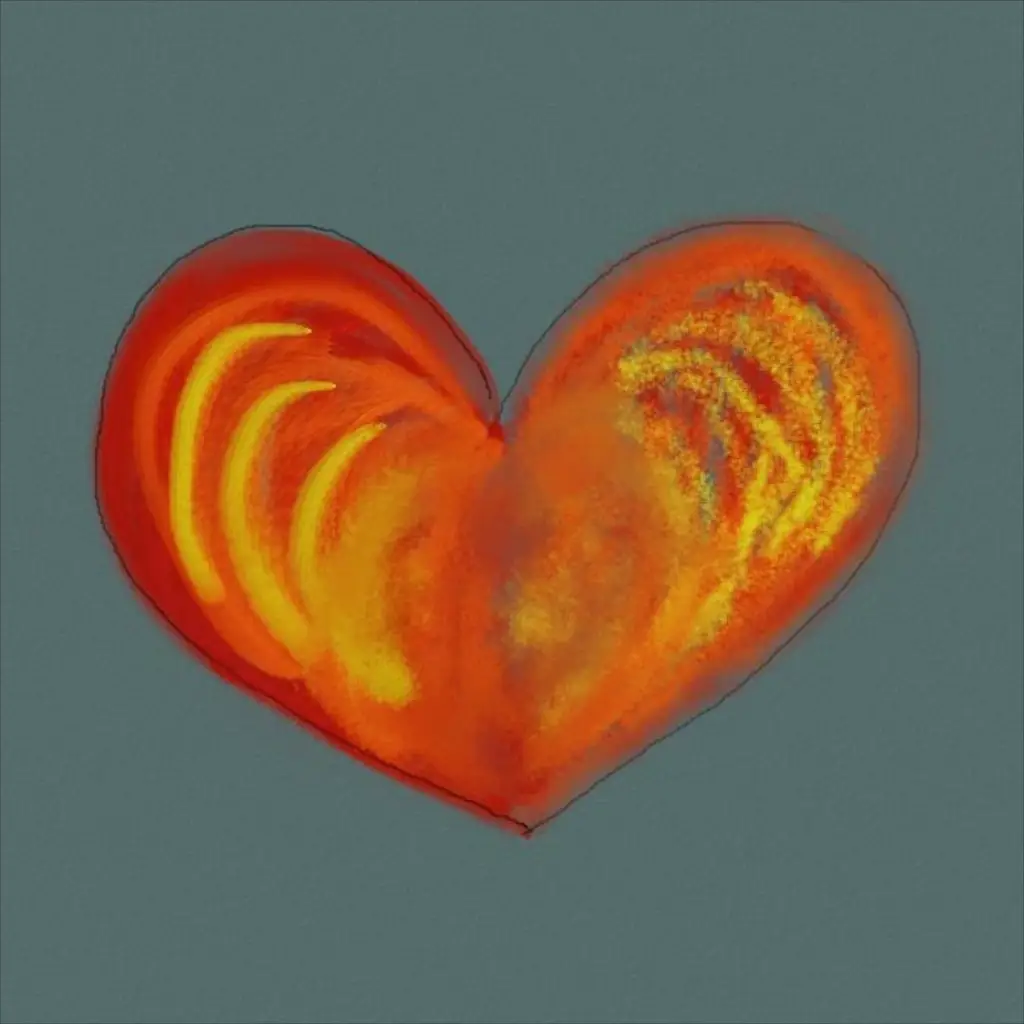
ArtSet. I like this app! I like that I can work with chalks, oil, pens, and other tools, and that there are several ways to blend the colours, such as with water, a sponge, or a piece of paper. But those blending techniques are not as good as I expected. I also wish they had a covering ink to choose from. But even so, for a long time, I preferred this app when I wanted to paint and create.
My advice is: Buy it if you want a cheap app. You can do plenty with it, but it has some limitations.

Noteshelf. This notebook lets you both draw with a pen and type on the keyboard. It has a limited choice of colours and only two tools, but you can choose the pen sizes freely. I think it’s really easy to use, and it’s fun to sketch ideas in this app.
I create a notebook for each project, and I have bought some extra covers and papers for fun – but you get as much as you need from the start. I also like that I can protect some of the notebooks with a password, and it’s handy that I can export my sketches to Evernote and then copy the Evernote URL to send to someone I want to look at my sketches.
My advice is: Get Noteshelf! It’s the best notebook app I have. It’s easy to use and has practical functions. You will not be able to draw fantastic paintings with it, but it will help you to visualise your ideas.
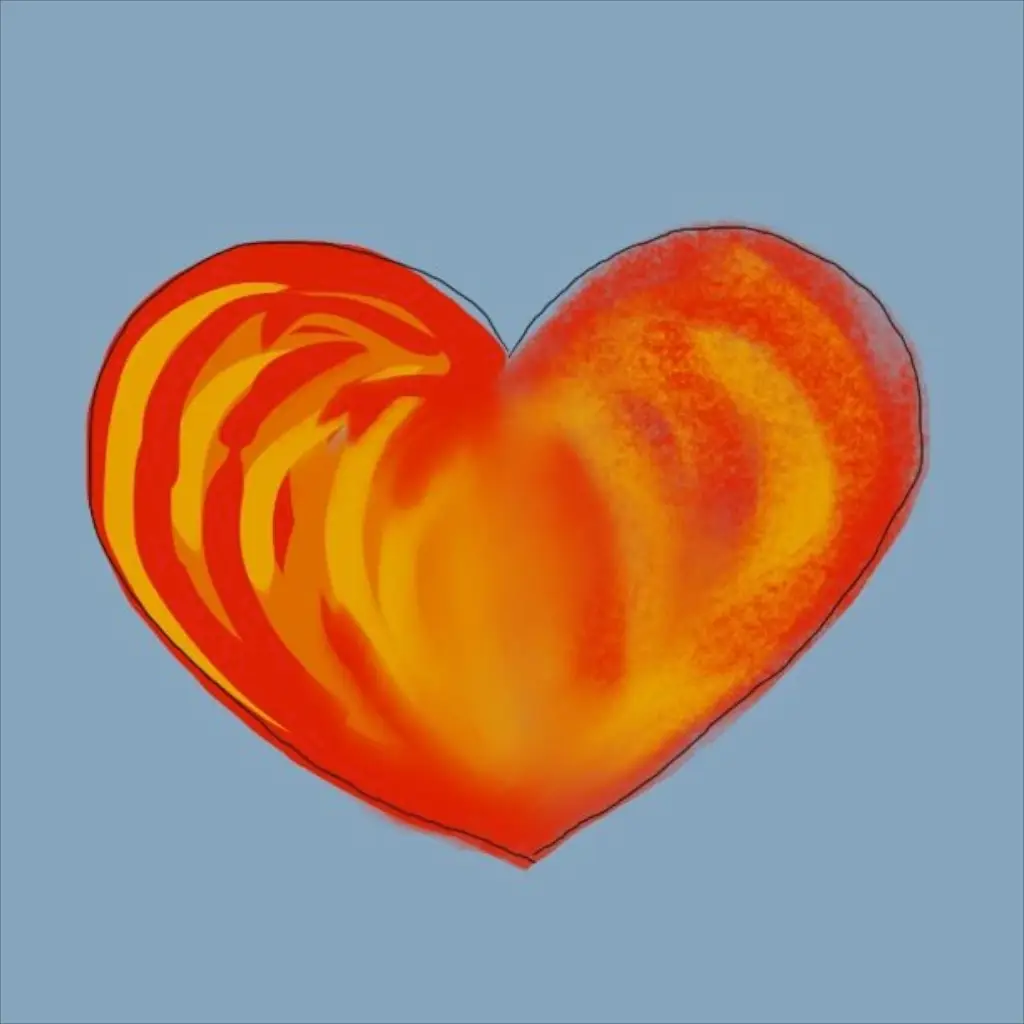
ProCreate! Taraaa, here it comes, the winner in my paint app test. I bought it yesterday, and I am happy. At last, an iPad app that works with elegance. The UI is really easy. As you can see, the chalk and the covering ink work fine, and so does the blending. I also like the thin black line. I have used layers as well. This is just the drawing I did for this test. If you look at it closely, you can see the paint’s structure.
My advice is: if you like to paint, buy Procreate.
I end this blog post with the first picture I painted with ProCreate yesterday.
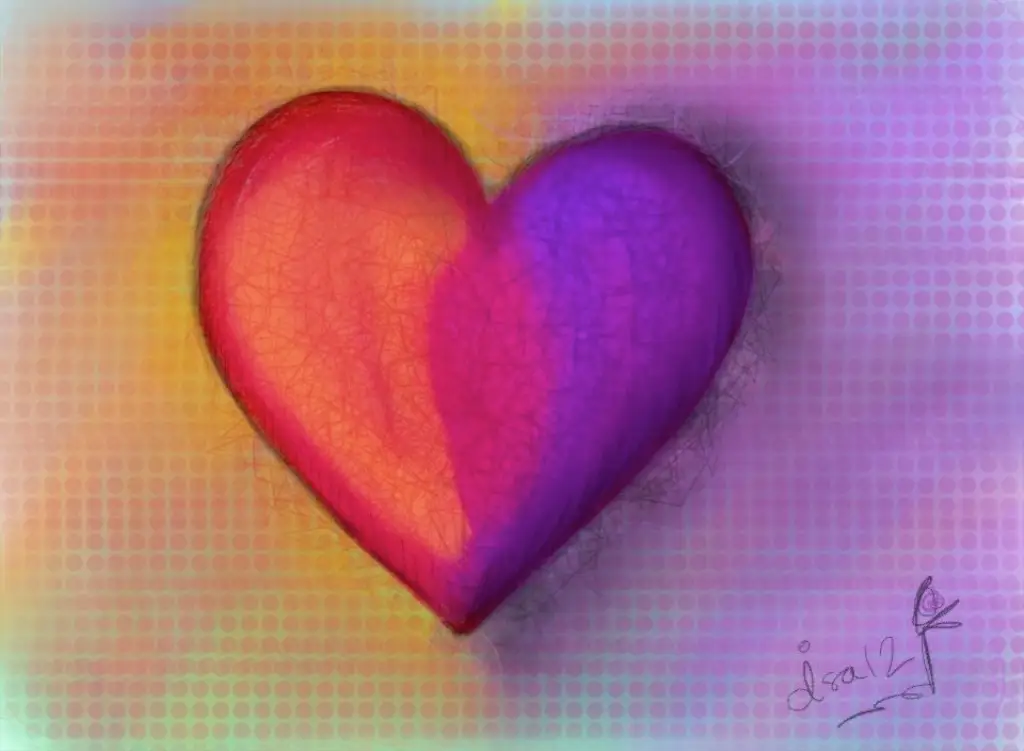
I hope you liked my test! If you click on a picture, you can watch them all as a slideshow.
(PS. Naturally, you can’t compare these apps to Painter, especially if you work professionally as an illustrator. Painter is a digital upgrade from natural media. These apps are happy efforts to imitate reality – but so far, it’s mostly just for fun.)